
The Short Answer
Windows Server administration is the practice of managing, maintaining, and securing Windows Server environments to keep business operations running without interruption. For UK businesses, effective Windows Server administration covers five core areas: server monitoring and maintenance, patch management, user and access management, backup and disaster recovery, and security hardening. A well-administered Windows Server environment reduces unplanned downtime by up to 80%, extends hardware lifecycles by 20–30%, and forms the backbone of your entire IT infrastructure. Most SMEs benefit from professional server administration rather than relying on ad-hoc support, as the cost of a single server failure typically exceeds a year of managed maintenance.
Windows Server remains the most widely used server operating system in UK businesses. Whether you are running Windows Server 2019, 2022, or preparing for the latest release, effective administration is what separates a reliable infrastructure from one that fails at the worst possible moment. This guide covers everything UK businesses need to know about Windows Server administration.
What Does a Windows Server Engineer Do?
A Windows Server engineer is responsible for the full lifecycle of your server infrastructure. Their core responsibilities include:
- Installation and configuration — Setting up new servers, configuring roles and features, and optimising performance for your specific workloads.
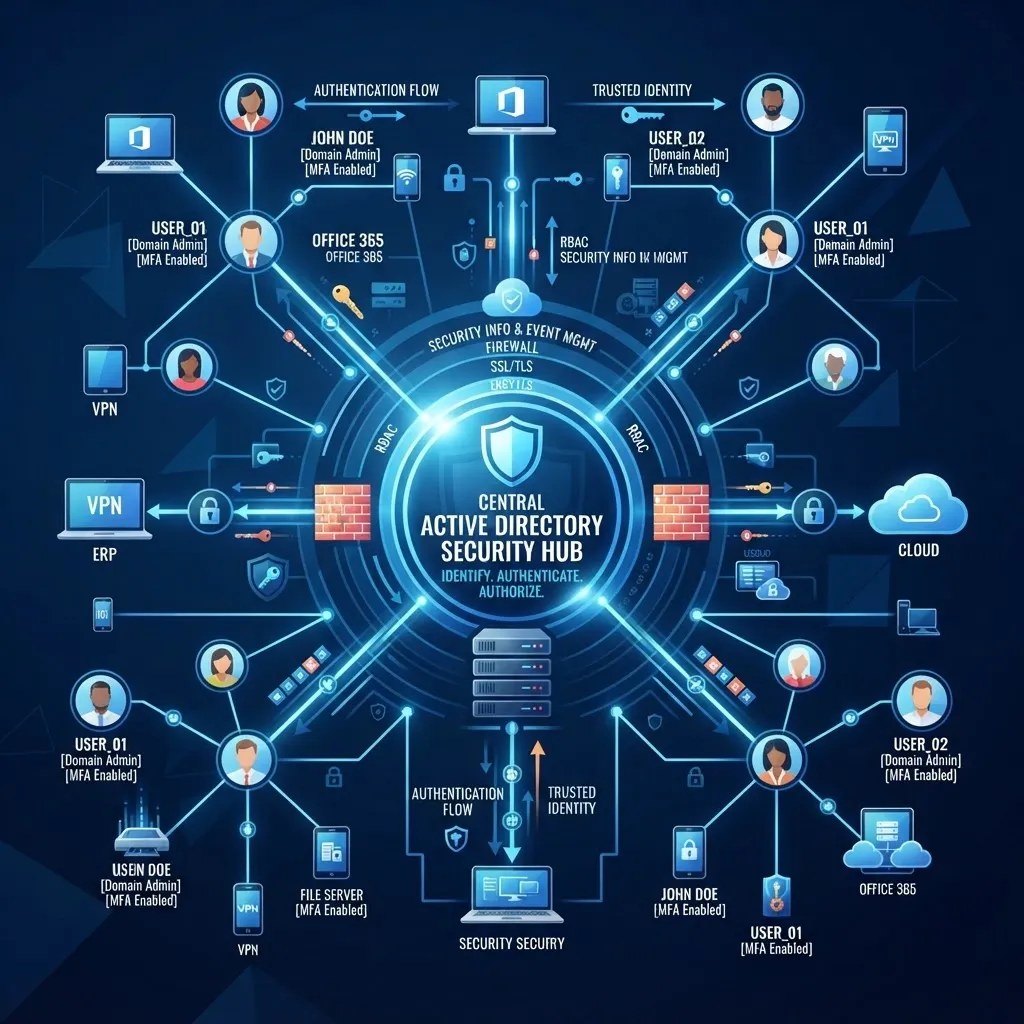
- Active Directory management — Managing user accounts, groups, group policies, and domain controllers that control access across your organisation.
- Monitoring and alerting — Using tools like System Centre Operations Manager (SCOM) or third-party monitoring to detect issues before they cause downtime.
- Patch management — Applying security updates and feature updates on a regular schedule to protect against vulnerabilities.
- Backup and recovery — Ensuring server data is backed up, testing recovery procedures, and maintaining business continuity.
- Security hardening — Configuring firewalls, restricting access, auditing logs, and implementing best practices to protect against cyber threats.
The Five Pillars of Windows Server Administration
1. Server Monitoring and Maintenance
Proactive monitoring is the single most important aspect of server administration. Without it, you are flying blind — the first sign of a problem is when something breaks.
What to monitor:
- CPU and memory usage (sustained high usage indicates capacity issues)
- Disk space (running out of disk space causes cascading failures)
- Event logs (application errors, security events, system warnings)
- Service health (critical services like Exchange, SQL, or IIS)
- Network connectivity and bandwidth usage
Tools: Windows Server includes built-in Performance Monitor and Event Viewer. For comprehensive monitoring, Microsoft System Centre, PRTG, or Nagios provide real-time alerting and historical trending.
2. Patch Management
Unpatched servers are the number one target for cyber attacks. Microsoft releases security updates on the second Tuesday of each month ("Patch Tuesday"), and critical vulnerabilities are often exploited within days of disclosure.
Best practices:
- Test patches first — Deploy to a test environment before production to catch compatibility issues.
- Patch within 14 days — This is the Cyber Essentials Plus requirement and a good baseline for all businesses.
- Use automated deployment — Tools like WSUS (Windows Server Update Services) or SCCM automate patch distribution across multiple servers.
- Document exceptions — If a patch cannot be applied, document why and implement compensating controls.
3. User and Access Management
Active Directory is the heart of Windows Server administration. It controls who can access what across your entire network.
Key practices:
- Principle of least privilege — Users should have the minimum access needed to do their jobs. Administrative accounts should be separate from daily-use accounts.
- Regular access reviews — Quarterly reviews of user accounts, group memberships, and administrative access to remove stale or excessive permissions.
- Group Policy management — Use Group Policy Objects (GPOs) to enforce security settings, software configurations, and restrictions across all users and devices.
- Account lifecycle management — Disable accounts immediately when employees leave. Stale accounts are a major security risk.
4. Backup and Disaster Recovery
Backups are your last line of defence against data loss. A server administration strategy without tested backups is incomplete.
What to back up:
- System state (Active Directory, registry, system files)
- Application data (Exchange databases, SQL databases, file shares)
- Full server images (for bare-metal recovery)
Best practices:
- Follow the 3-2-1 rule: three copies of data, on two different media, with one off-site.
- Test recovery monthly — a backup you have not tested is not a backup.
- Use Windows Server Backup or a dedicated solution like Veeam for comprehensive protection.
5. Security Hardening
Security is not a one-time task but an ongoing process. Windows Server includes many security features, but they must be configured correctly.
Essential hardening steps:
- Enable Windows Firewall on all servers with rules that allow only required traffic.
- Disable unnecessary services and roles to reduce the attack surface.
- Enforce strong password policies and multi-factor authentication for administrative access.
- Enable audit logging to track who did what and when.
- Use BitLocker to encrypt server drives, protecting data if hardware is stolen.
- Implement network segmentation to isolate critical servers from general network traffic.
Windows Server Lifecycle: When to Upgrade
Microsoft supports each Windows Server release for approximately 10 years — five years of mainstream support and five years of extended support. Running an unsupported server means no security updates, which is a significant risk.
| Version | End of Mainstream Support | End of Extended Support | |---------|--------------------------|----------------------| | Windows Server 2016 | 11 Jan 2022 | 14 Jan 2027 | | Windows Server 2019 | 9 Jan 2024 | 9 Jan 2029 | | Windows Server 2022 | 11 Oct 2026 | 11 Oct 2031 |
If you are running Windows Server 2016 or earlier, you should plan a migration now. Running unsupported servers invalidates Cyber Essentials certification and creates security vulnerabilities.
Frequently Asked Questions
How much does Windows Server administration cost?
Managed Windows Server administration typically costs £15–£35 per server per month as part of a managed IT support package. This includes monitoring, patching, backups, and security hardening. Standalone server administration from a specialist engineer costs £50–£100 per hour.
How often should Windows Servers be patched?
Security patches should be applied within 14 days of release, as required by Cyber Essentials Plus. Critical security updates should be applied sooner — ideally within 72 hours. Always test patches in a non-production environment first.
What is the difference between a systems administrator and a server engineer?
A systems administrator manages day-to-day operations of IT systems, including user accounts, backups, and basic maintenance. A server engineer has deeper technical expertise in server architecture, virtualization, and complex troubleshooting. Most SMEs need both skill sets, which is why managed IT support is more cost-effective than hiring individual specialists.
How do I know if my Windows Server needs replacing?
Signs that a server needs replacing include: it is running an unsupported operating system, hardware is over five years old, performance is degrading despite maintenance, or it no longer meets your capacity needs. A server health check from a qualified engineer can assess whether to upgrade, migrate, or replace.
Can I manage Windows Server myself without an IT team?
For very small businesses with a single server, basic administration is possible with some training. However, as your infrastructure grows, the complexity of Active Directory, security, and disaster recovery requires professional expertise. The cost of a mistake — data loss, security breach, or extended downtime — far exceeds the cost of professional support.