
The Short Answer
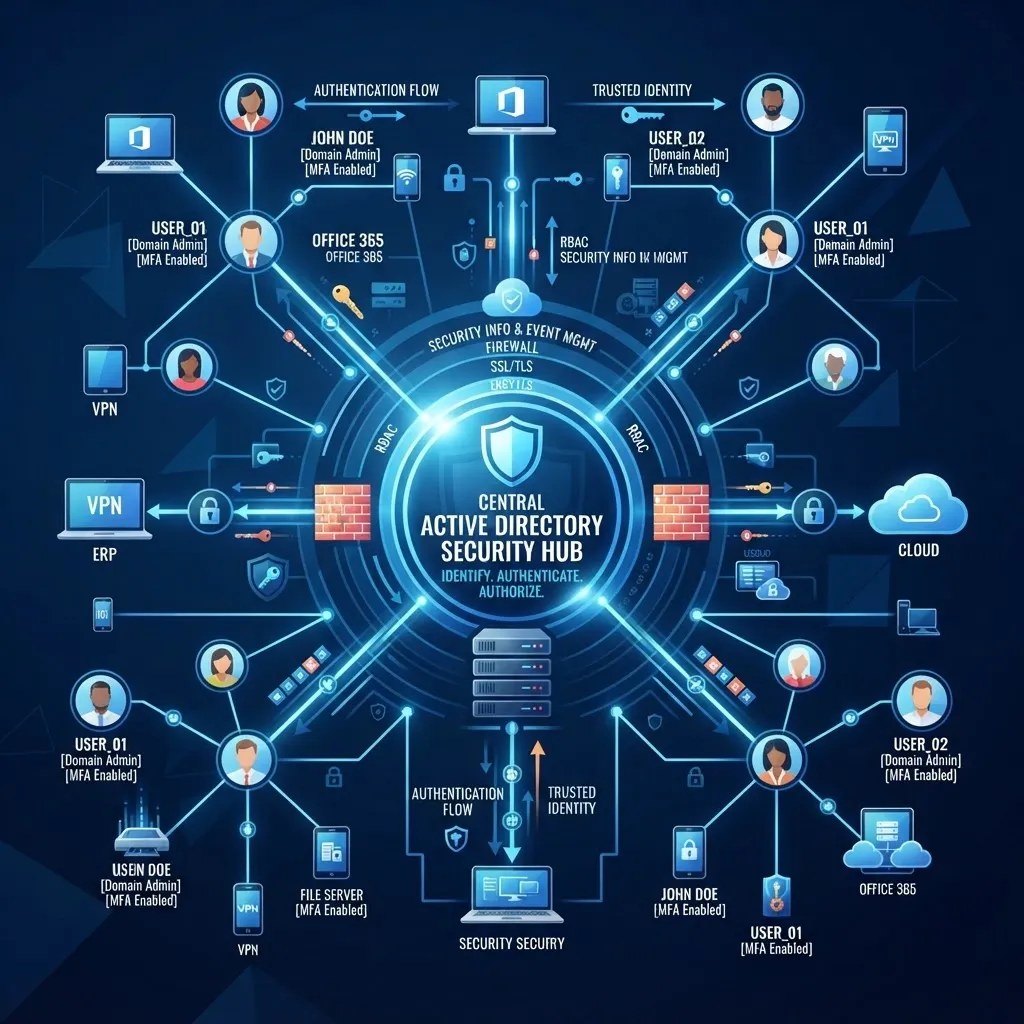
Active Directory (AD) is the identity foundation for most UK businesses — it controls who can access what across your entire network. It's also the #1 target for attackers, because compromising AD gives them the keys to your entire kingdom. The 12 essential security controls every business should implement are: Tier 0 admin separation, least privilege access, MFA for all admins, disabled local admin rights, LAPS for local admin passwords, Group Policy security baselines, audit logging enabled, disabled legacy protocols, service account protection, regular access reviews, honeypot accounts, and patch management for domain controllers. Implementing all 12 controls reduces AD compromise risk by over 90% and is a requirement for Cyber Essentials Plus and ISO 27001 certification.
Active Directory has been the backbone of Windows-based IT for over 20 years, and despite the shift to cloud identity (Microsoft Entra ID), most UK businesses still rely on on-premises AD for authentication, access control, and Group Policy management. Securing AD is not optional — it's the foundation of your entire security posture.
Why Active Directory Security Matters
If an attacker compromises your Active Directory, they effectively own your business. With Domain Admin credentials, an attacker can:
- Access every server, workstation, and application in your environment
- Reset any user's password and impersonate them
- Access all shared files, databases, and email
- Create backdoor accounts that persist even after you think you've cleaned up
- Disable your security tools and monitoring
- Encrypt your entire environment with ransomware
This is why AD is the primary target for attackers — and why securing it is the single most important security investment you can make.
The 12 Essential Active Directory Security Controls
Control 1: Tier 0 Administrator Separation
Tier 0 accounts are your most privileged accounts — Domain Admins, Enterprise Admins, and anyone with administrative access to domain controllers. These accounts should be completely isolated from day-to-day activity.
What to implement:
- Separate admin accounts — Each IT staff member has two accounts: a standard user account for email, web browsing, and daily tasks, and a separate admin account for administrative work.
- Dedicated admin workstations — Admin accounts should only be used from dedicated, hardened workstations that are not used for email, web browsing, or general work.
- No Tier 0 on daily workstations — Tier 0 admin accounts should never log into standard workstations, which are more likely to be compromised through phishing or malware.
Why it matters: If an admin uses their Domain Admin account for daily email and clicks a phishing link, the attacker gets Domain Admin credentials. If they use a separate admin account from a dedicated workstation, the attacker gets standard user credentials — far less damaging.
Control 2: Least Privilege Access
Most businesses give users far more access than they need. The principle of least privilege means giving users only the permissions they need to do their jobs — no more.
What to implement:
- Remove users from Domain Admins — Only 1–2 people should be Domain Admins. Most IT staff can do their jobs with delegated permissions.
- Use delegated permissions — Instead of making someone a Domain Admin to manage user accounts, delegate specific AD permissions (e.g., password reset for a specific OU).
- Time-limited admin access — Use Privileged Identity Management (PIM) or similar tools to grant admin access only when needed, with approval and time limits.
- Regular access reviews — Quarterly reviews of all admin and privileged accounts to remove stale or excessive permissions.
Control 3: Multi-Factor Authentication for All Admins
If an attacker steals an admin password, MFA prevents them from using it. MFA blocks 99.9% of identity-based attacks.
What to implement:
- MFA for all admin accounts — Not just Domain Admins, but all accounts with elevated privileges (helpdesk, server admins, service account admins).
- Hardware tokens for Tier 0 — Use YubiKey or FIDO2 tokens for Tier 0 admin accounts — these are immune to phishing, SIM swapping, and MFA fatigue attacks.
- Conditional access — Restrict admin logins to specific locations, devices, and times.
Control 4: Disable Local Admin Rights
Most businesses give users local admin rights on their workstations — this is a major security risk. If a user with local admin rights clicks a phishing link, the attacker can install malware that persists across reboots and can harvest credentials.
What to implement:
- Remove local admin rights from all standard users — Users should not be local administrators on their own workstations.
- Use LAPS for local admin passwords — Microsoft Local Administrator Password Solution (LAPS) automatically generates and rotates unique local admin passwords for each workstation, stored securely in AD.
- Privileged access management for admin tasks — If users occasionally need admin rights for software installation, use a just-in-time access solution rather than permanent local admin rights.
Why it matters: 80% of ransomware attacks that start with a user clicking a phishing link could be prevented by removing local admin rights.
Control 5: LAPS for Local Admin Passwords
If every workstation has the same local admin password, compromising one workstation gives an attacker access to all of them. LAPS solves this by giving each workstation a unique, automatically rotated local admin password.
What to implement:
- Deploy Microsoft LAPS — The modern version (Windows LAPS) is built into Windows 11 and Windows Server 2022, and available as a download for older versions.
- Configure password rotation — Set passwords to rotate every 30 days, with complexity requirements.
- Store passwords in AD or Entra ID — LAPS stores encrypted passwords in AD or Entra ID, accessible only to authorised administrators.
- Back up passwords before rotation — Ensure you can recover passwords if needed.
Control 6: Group Policy Security Baselines
Group Policy is the mechanism for enforcing security settings across your AD environment. Microsoft publishes security baselines — recommended Group Policy settings for security hardening.
What to implement:
- Apply Microsoft Security Baselines — Download and apply Microsoft's security baselines for Windows 11, Windows Server, and Microsoft 365.
- Key policies to enforce:
- Password policy (length, complexity, history, age)
- Account lockout policy (lockout threshold, duration)
- User rights assignment (who can log on locally, access from network, etc.)
- Security options (SMB signing, LDAP signing, NTLM restrictions)
- Event log settings (size, retention)
- Test before deploying — Security baselines can break legacy applications. Test in a pilot group before deploying organisation-wide.
Control 7: Enable Audit Logging
If you don't log what's happening in AD, you can't detect attacks. Audit logging is essential for detecting suspicious activity and investigating incidents.
What to implement:
- Enable advanced audit policies — Configure AD to log:
- Account logon events (success and failure)
- Account management (user creation, deletion, group changes)
- Directory service access (changes to AD objects)
- Logon events (success and failure)
- Policy changes (Group Policy, security policy)
- Forward logs to a SIEM — Use Microsoft Sentinel or a similar SIEM to centralise and analyse logs from all domain controllers.
- Set up alerts — Configure alerts for suspicious activity (mass account creation, failed logon spikes, admin group changes).
Control 8: Disable Legacy Protocols
Legacy authentication protocols (NTLM, SMBv1, LDAP without signing) are vulnerable to attacks like pass-the-hash, relay attacks, and credential theft. Disabling them closes common attack vectors.
What to implement:
- Disable SMBv1 — SMBv1 has known vulnerabilities (used by WannaCry and NotPetya). Disable it on all servers and workstations.
- Require LDAP signing — Configure AD to require LDAP signing, preventing LDAP relay attacks.
- Restrict NTLM — Audit NTLM usage and restrict it where possible. Modern authentication uses Kerberos, which is more secure.
- Disable basic authentication — For Exchange and IIS, disable basic authentication, which transmits credentials in clear text.
Control 9: Service Account Protection
Service accounts are used by applications to run services and access resources. They often have high privileges and passwords that never change — making them a prime target for attackers.
What to implement:
- Group Managed Service Accounts (gMSA) — Use gMSA for service accounts, which automatically rotate passwords every 30 days.
- Least privilege for service accounts — Give service accounts only the permissions they need, not Domain Admin.
- Separate service accounts — Don't use the same service account for multiple applications — if one is compromised, all are.
- Monitor service account logons — Service accounts should only log on to specific servers. Alert on service account logons from unexpected locations.
Control 10: Regular Access Reviews
Permissions accumulate over time. Users who changed roles keep their old permissions. Departed employees' accounts are sometimes not disabled. Regular access reviews clean this up.
What to implement:
- Quarterly admin group reviews — Review all members of Domain Admins, Enterprise Admins, and other privileged groups. Remove anyone who doesn't need the access.
- Semi-annual user access reviews — Review all user permissions, group memberships, and access rights. Remove stale or excessive permissions.
- Monthly stale account cleanup — Identify and disable accounts that haven't logged on in 90+ days.
- Document access changes — Keep a record of all access changes for audit and compliance.
Control 11: Honeypot Accounts
A honeypot account is a fake admin account that no one should ever use. If someone tries to log on with it, you know someone is attacking your AD — and you can alert and respond immediately.
What to implement:
- Create a fake admin account — Give it a realistic name (e.g., "backup_admin") and add it to a visible but non-critical group.
- Set up alerts — Configure your SIEM to alert immediately if anyone attempts to authenticate with this account.
- No legitimate use — Ensure no one uses this account for any legitimate purpose. Any authentication attempt is an attack.
Control 12: Patch Management for Domain Controllers
Domain controllers are the most critical servers in your environment. Unpatched domain controllers are a direct path to full environment compromise.
What to implement:
- Patch within 72 hours — For critical security updates, patch domain controllers within 72 hours of release — faster than the 14-day Cyber Essentials requirement.
- Test patches first — Test updates on a non-production domain controller before deploying to production.
- Automated patching — Use WSUS or SCCM to automate patch deployment, with approval workflows for domain controllers.
- Monitor patch status — Regularly verify that all domain controllers are fully patched.
Implementing the 12 Controls: A Phased Approach
Phase 1: Quick Wins (Week 1–2)
- Separate admin accounts from user accounts
- Enable MFA for all admin accounts
- Remove local admin rights from standard users
- Deploy LAPS for local admin passwords
Phase 2: Hardening (Week 3–6)
- Apply Microsoft Security Baselines via Group Policy
- Enable advanced audit logging
- Disable legacy protocols (SMBv1, NTLM restrictions)
- Implement gMSA for service accounts
Phase 3: Monitoring and Maintenance (Week 7–12)
- Forward logs to Microsoft Sentinel or SIEM
- Set up alerts for suspicious activity
- Create honeypot accounts
- Establish quarterly access review process
Phase 4: Ongoing (Continuous)
- Patch domain controllers within 72 hours
- Conduct quarterly access reviews
- Test AD security with annual penetration testing
- Maintain Cyber Essentials Plus certification
Frequently Asked Questions
What is Active Directory and why is it a security target?
Active Directory is Microsoft's identity and access management system that controls who can log on to your network and what they can access. It's the primary target for attackers because compromising AD gives them access to every system, application, and file in your environment. With Domain Admin credentials, an attacker effectively owns your business.
What is a Tier 0 account?
Tier 0 accounts are the most privileged accounts in Active Directory — Domain Admins, Enterprise Admins, and anyone with administrative access to domain controllers. These accounts should be completely isolated from day-to-day activity, used only from dedicated admin workstations, and protected with hardware token MFA.
How does LAPS improve security?
Microsoft LAPS (Local Administrator Password Solution) automatically generates and rotates unique local admin passwords for each workstation, stored securely in AD. Without LAPS, if every workstation has the same local admin password, compromising one workstation gives an attacker access to all of them. LAPS ensures each workstation has a unique password that rotates regularly.
What is the difference between Active Directory and Entra ID?
Active Directory is Microsoft's on-premises identity and access management system. Microsoft Entra ID (formerly Azure AD) is Microsoft's cloud-based identity system. Most businesses use both in a hybrid configuration, with AD Connect synchronising on-premises AD with Entra ID. Both need to be secured — this guide covers AD; see our Entra ID guide for cloud identity security.
How often should I review Active Directory permissions?
Conduct a full review of all admin and privileged accounts quarterly. Review all user permissions and group memberships semi-annually. Identify and disable stale accounts (no logon in 90+ days) monthly. Regular reviews prevent permission accumulation and ensure departed employees' accounts are disabled.
What is a honeypot account and why should I create one?
A honeypot account is a fake admin account that no legitimate user should ever use. If anyone attempts to authenticate with it, you know someone is attacking your Active Directory. By alerting on honeypot account authentication attempts, you can detect attacks early — often before the attacker has gained any real access.
Is Active Directory security required for Cyber Essentials?
Yes. Cyber Essentials requires basic AD security controls including MFA for admin accounts, restricted administrative access, and patch management. Cyber Essentials Plus adds an independent audit that verifies these controls are properly implemented. ISO 27001 also requires comprehensive identity and access management controls.
How do I know if my Active Directory has been compromised?
Signs of AD compromise include: unexpected admin account creation, changes to Group Policy, mass password resets, service accounts logging on from unexpected locations, disabled security tools, and unusual logon patterns. Enable advanced audit logging and forward logs to a SIEM to detect these signs early. If you suspect compromise, engage an incident response specialist immediately.