
The Short Answer
PowerShell is a task automation and configuration management framework that allows IT administrators to automate repetitive Windows Server management tasks, reducing manual effort by 70–90%. For UK SMEs, the highest-impact PowerShell automations include: user provisioning and deprovisioning (saves 2–3 hours per week), patch deployment reporting (saves 4–6 hours per month), server health checks (saves 3–5 hours per week), and bulk Active Directory management (saves 1–2 hours per task). PowerShell is free, included with Windows Server, and requires no additional licensing. Combined with Python for cross-platform scripting, it forms a complete automation toolkit for modern IT administration.
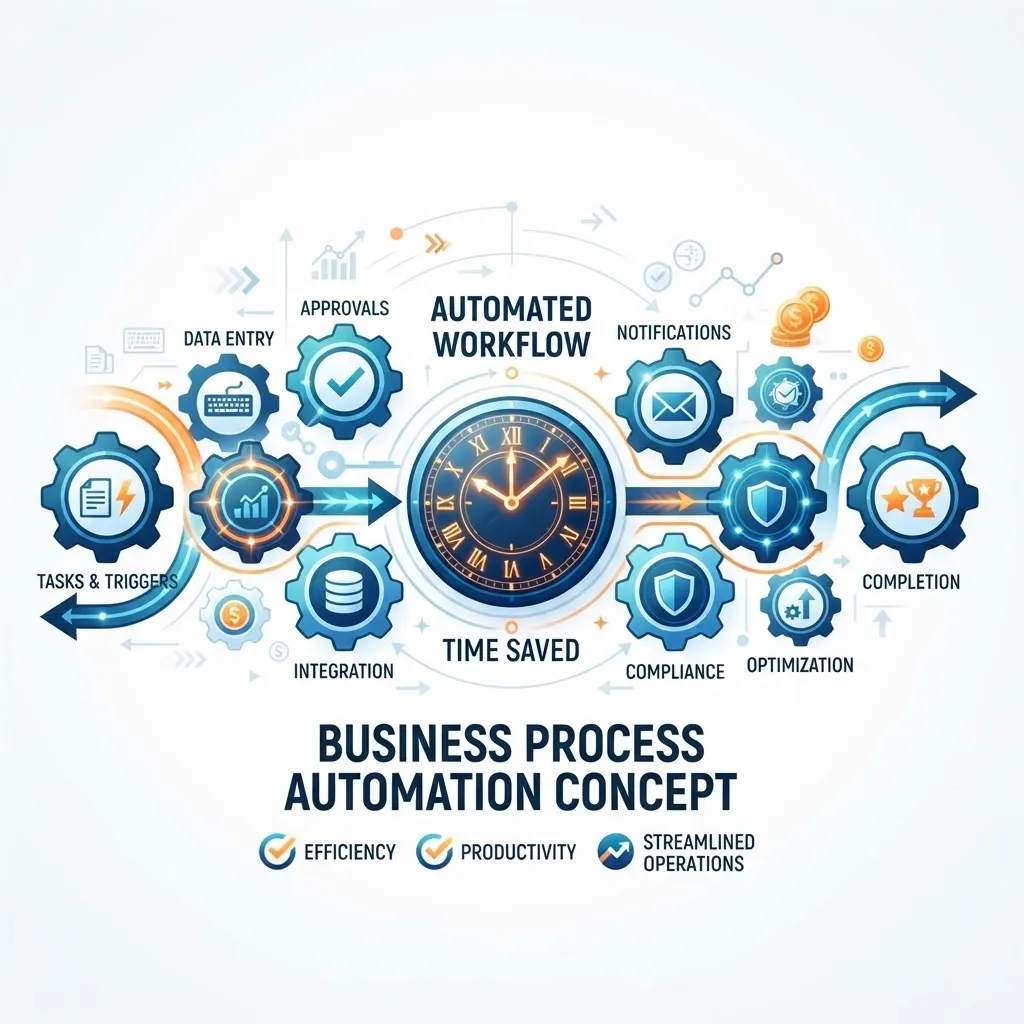
PowerShell is the most powerful tool in a Windows Server administrator's toolkit. It transforms hours of manual, click-driven administration into seconds of automated execution. For businesses managing multiple servers, users, and systems, PowerShell automation is not a luxury — it is a competitive advantage that frees your IT team to focus on strategic work instead of repetitive tasks.
What Is PowerShell and Why Does It Matter?
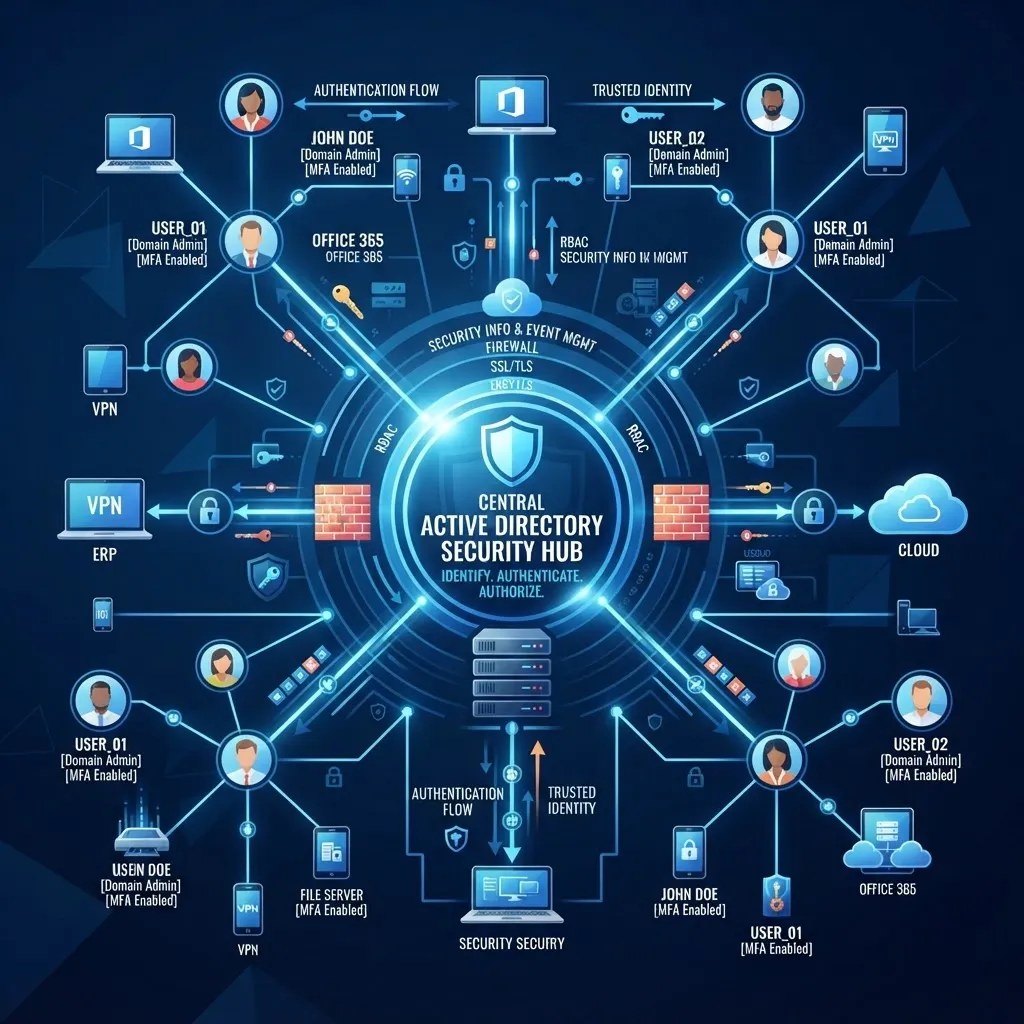
PowerShell is a command-line shell and scripting language built on the .NET framework. Unlike traditional command prompts, PowerShell can access and manipulate every aspect of Windows — the registry, services, Active Directory, Exchange, Office 365, Azure, and third-party applications.
Why it matters for IT admins:
- Automation — Scripts can perform in seconds what takes hours manually.
- Consistency — Scripts execute the same way every time, eliminating human error.
- Scale — A script that manages one server can manage 100 servers with a single line change.
- Reporting — PowerShell can query systems and generate reports that would take hours to compile manually.
- Integration — PowerShell modules exist for almost every Microsoft and third-party product.
The Five Highest-Impact PowerShell Automations for SMEs
1. User Provisioning and Deprovisioning
Creating a new user in Active Directory involves 10–15 steps: creating the account, setting the password, adding to groups, configuring email, setting up file permissions, and creating a home folder. Doing this manually takes 15–20 minutes per user. A PowerShell script does it in under 30 seconds.
What the script does:
- Creates the Active Directory account from a CSV file or form input
- Sets the password and forces change at first logon
- Adds the user to the correct security groups based on department
- Creates and configures the Exchange mailbox
- Sets up the home folder with correct permissions
- Sends a welcome email with login instructions
Time saved: 2–3 hours per week for a business onboarding 5–10 users weekly.
2. Server Health Check Reporting
Manually checking server health involves logging into each server, checking event logs, disk space, CPU usage, service status, and backup status. For 10 servers, this takes 2–3 hours. A PowerShell script does it in under a minute and generates a formatted report.
What the script checks:
- Disk space on all drives (alerts when below 15%)
- CPU and memory usage trends
- Critical events in System and Application logs
- Status of key services (Exchange, SQL, IIS, print spooler)
- Windows Update status (pending updates, last install date)
- Backup status from the previous night
Time saved: 3–5 hours per week. The report can be scheduled to run automatically and emailed to the IT team every morning.
3. Patch Management Reporting
Knowing which servers have pending patches, which failed to install, and which need a reboot is critical for security compliance. PowerShell can query all servers and generate a compliance report in minutes.
What the script reports:
- Missing patches per server
- Patch installation status (installed, failed, pending reboot)
- Last patch installation date
- Servers requiring reboots
- Compliance status against your patching policy
Time saved: 4–6 hours per month, plus improved security posture from faster patch deployment.
4. Bulk Active Directory Management
Managing Active Directory groups, permissions, and account policies across hundreds of users is tedious and error-prone when done manually. PowerShell makes bulk operations trivial.
Common bulk operations:
- Adding or removing users from security groups
- Disabling accounts for departed employees
- Resetting passwords for multiple users
- Updating user attributes (department, manager, job title)
- Finding and cleaning up stale accounts (no logon in 90+ days)
Time saved: 1–2 hours per bulk operation, with zero errors compared to manual execution.
5. Office 365 and Azure Management
PowerShell modules for Office 365 and Azure allow you to manage cloud resources with the same automation capabilities as on-premises systems.
What you can automate:
- Creating and licensing Office 365 users
- Managing Exchange Online mailboxes and rules
- Configuring SharePoint Online permissions
- Managing Azure resources and virtual machines
- Generating usage and compliance reports
PowerShell vs Python: When to Use Each
Both PowerShell and Python are valuable automation tools, but they serve different purposes:
| Factor | PowerShell | Python | |--------|-----------|--------| | Best for | Windows administration | Cross-platform, data, APIs | | Learning curve | Moderate (verb-noun syntax) | Moderate (readable syntax) | | Windows integration | Native, deep | Via libraries | | Cloud support | Excellent (Azure, O365) | Good (via SDKs) | | Community | Large (Microsoft-focused) | Massive (general-purpose) |
Recommendation: Use PowerShell for Windows Server, Active Directory, Exchange, and Office 365 automation. Use Python for cross-platform tasks, data processing, API integration, and custom tooling. Most IT teams benefit from knowing both.
Getting Started with PowerShell Automation
- Start small — Pick one repetitive task (like user creation) and write a script for it.
- Use existing scripts — The PowerShell Gallery has thousands of community scripts you can adapt.
- Test in a non-production environment — Never run untested scripts against production systems.
- Document your scripts — Add comments explaining what each section does, so others can maintain them.
- Schedule recurring scripts — Use Windows Task Scheduler to run health checks and reports automatically.
- Build a script library — Organise scripts by function (user management, reporting, maintenance) for easy reuse.
Frequently Asked Questions
Is PowerShell difficult to learn?
PowerShell uses a verb-noun syntax (Get-Process, Set-Service, New-User) that is relatively intuitive. Most IT admins can write useful scripts within a few days of learning. Microsoft provides free documentation and the PowerShell community offers extensive tutorials and examples.
Do I need a licence to use PowerShell?
No. PowerShell is free and included with Windows Server and Windows 10/11. Some advanced modules (like Azure PowerShell) require the underlying cloud services, but the scripting environment itself is completely free.
Can PowerShell scripts be dangerous?
Like any powerful tool, PowerShell scripts can cause damage if written or used incorrectly. Always test scripts in a non-production environment, use the -WhatIf parameter to preview changes, and implement proper error handling. A well-written script is safer than manual administration because it is consistent and repeatable.
How long does it take to automate IT tasks with PowerShell?
Most basic automations (user creation, health checks, reporting) can be written and tested in a few hours. More complex automations involving multiple systems may take a few days. The time invested is recovered quickly — a script that saves 2 hours per week pays for itself in the first week.
Should my business hire a PowerShell specialist?
For most SMEs, PowerShell automation is best handled as part of managed IT support. A managed provider can implement and maintain automation scripts without the cost of a full-time specialist. If your business has complex automation needs or a large IT team, a dedicated automation engineer may be justified.