The Short Answer
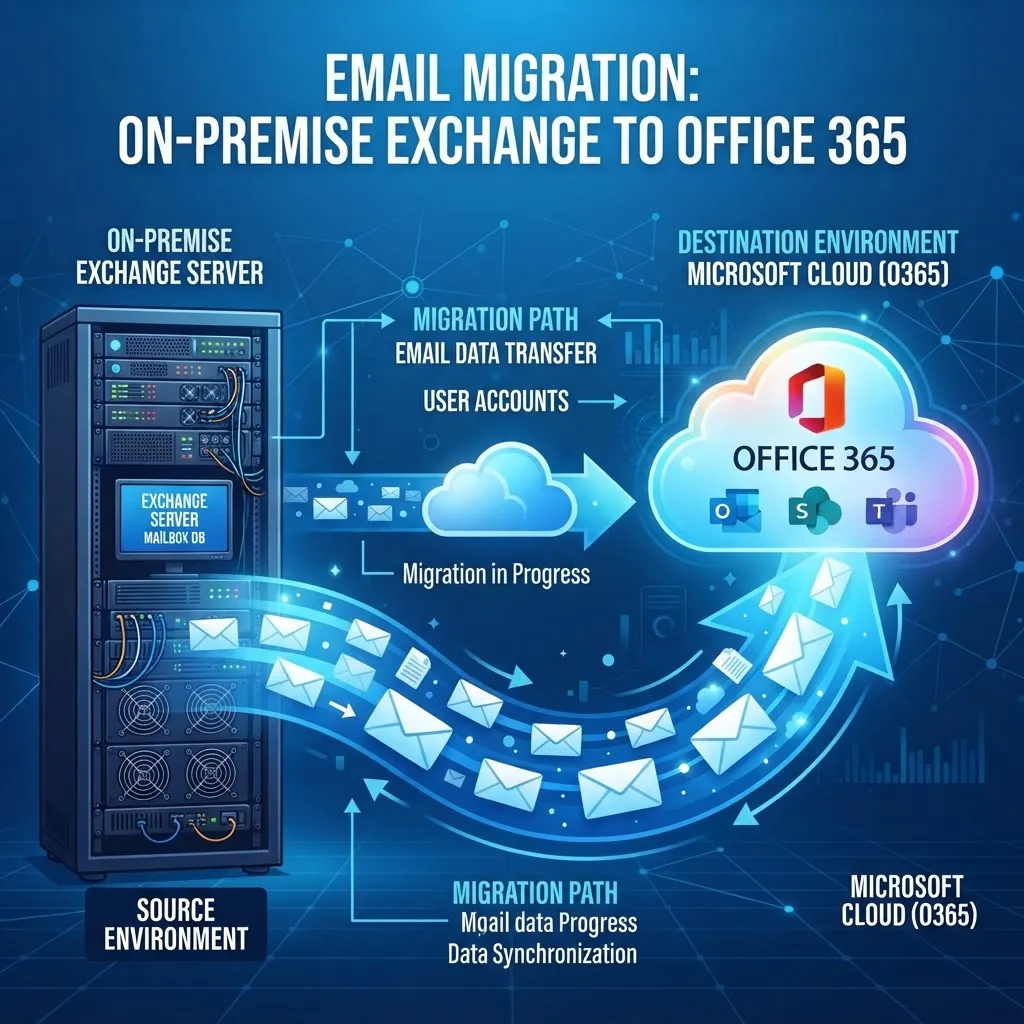
Exchange Server is reaching end of support, and businesses running on-premises Exchange must migrate to Office 365 (Exchange Online) to continue receiving security updates. The migration follows a five-phase approach: assessment and planning, hybrid configuration, mailbox migration, DNS cutover, and post-migration support. For a 50-user business, the migration takes 2–4 weeks with minimal downtime (under 30 minutes during cutover). Typical costs range from £2,000 to £8,000. Office 365 provides better security, larger mailboxes (50GB–100GB vs 2GB on-premises), built-in anti-spam, and access from any device — making it a significant upgrade, not just a like-for-like move.
Microsoft Exchange Server has been the backbone of business email for decades. But the landscape is changing. On-premises Exchange requires significant infrastructure, maintenance, and security investment, while Exchange Online (part of Office 365) provides the same functionality as a cloud service — with better security, larger mailboxes, and no server maintenance. This guide walks through everything UK businesses need to know about migrating from on-premises Exchange to Office 365.
Why Migrate from Exchange Server to Office 365?
1. Exchange Server End of Support
Microsoft has ended mainstream support for Exchange Server 2013 and 2016, and Exchange Server 2019 reaches end of support in October 2025. Running an unsupported Exchange server means no security updates — a critical vulnerability that cyber criminals actively exploit.
2. Larger Mailboxes and Better Features
On-premises Exchange mailboxes are typically limited to 2–5GB due to storage constraints. Exchange Online provides 50GB mailboxes on the basic plan and 100GB on higher plans, with unlimited archiving available. Users also get shared calendars, shared mailboxes, resource booking, and mobile access included.
3. Built-in Security and Compliance
Exchange Online includes Exchange Online Protection (anti-spam and anti-malware) at no additional cost. Advanced Threat Protection (ATP) adds safe links, safe attachments, and phishing protection. On-premises Exchange requires third-party solutions for equivalent protection.
4. No Server Maintenance
On-premises Exchange requires patching, backup management, certificate renewal, database maintenance, and hardware upkeep. Exchange Online eliminates all of this — Microsoft handles infrastructure, security, and updates automatically.
5. Access from Anywhere
Exchange Online works seamlessly from any device — desktop, laptop, tablet, or phone — with native apps for iOS and Android. On-premises Exchange requires complex VPN or firewall configurations for remote access.
The Five-Phase Exchange to Office 365 Migration
Phase 1: Assessment and Planning (Week 1)
Before starting the migration, you need a complete understanding of your current Exchange environment.
What to assess:
- Number of mailboxes, shared mailboxes, and resource mailboxes
- Total mailbox data size (determines migration time)
- Email flow configuration (send connectors, receive connectors, transport rules)
- Public folders (if any — these need special migration handling)
- Third-party applications that use Exchange (scanners, CRM, backup tools)
- Mobile device access patterns and ActiveSync policies
- Compliance and retention requirements
Output: A migration plan with timelines, user groups, and a cutover schedule.
Phase 2: Hybrid Configuration (Week 1–2)
A hybrid configuration allows your on-premises Exchange and Office 365 to coexist during the migration, enabling a phased transition rather than a risky all-at-once cutover.
What to configure:
- Hybrid Configuration Wizard — Microsoft's free tool that sets up mail flow, free/busy calendar sharing, and directory synchronisation between on-premises and cloud.
- Azure AD Connect — Synchronises your on-premises Active Directory with Azure AD, so users have the same credentials in both environments.
- Mail flow — Configure connectors so email flows correctly between on-premises and cloud during migration.
- Autodiscover — Update DNS so Outlook clients can find their mailbox whether it is on-premises or in the cloud.
Phase 3: Mailbox Migration (Week 2–3)
With hybrid configured, migrate mailboxes in batches to minimise disruption.
Migration methods:
- Hybrid migration — Migrates mailboxes while keeping users productive. Email flows between on-premises and cloud during migration. Users are moved in batches of 10–50.
- Cutover migration — Migrates all mailboxes at once. Best for small organisations (under 50 users) with simple environments. Requires a weekend cutover.
- IMAP migration — Migrates email only (no calendar or contacts). Used when migrating from non-Exchange systems.
Best practice: Use hybrid migration for organisations with more than 20 users. It allows phased migration, testing, and rollback if needed.
Phase 4: DNS Cutover (Week 3)
The DNS cutover is the moment when your email starts flowing to Office 365 instead of on-premises Exchange. This is the most critical step and should be planned for a low-traffic period (Friday evening or weekend).
What to change:
- MX record — Update to point to Office 365 (yourdomain.mail.protection.outlook.com)
- Autodiscover CNAME — Update to point to autodiscover.outlook.com
- SPF record — Add Office 365 servers to your SPF record
- DKIM — Enable DKIM signing in Office 365 for email authentication
- DMARC — Configure DMARC policy to prevent email spoofing
Downtime: With pre-staged migration, downtime is under 30 minutes. Email sent during the cutover is queued and delivered once the new MX record propagates.
Phase 5: Post-Migration Support (Week 4+)
The migration is not complete on cutover day. The first two weeks are critical for user adoption and issue resolution.
Post-migration tasks:
- Decommission on-premises Exchange — Once all mailboxes are migrated and verified, safely decommission the on-premises Exchange server. Do not just turn it off — properly remove it to keep Active Directory clean.
- User training — Train users on Outlook on the web, mobile setup, and new features like Focused Inbox and shared mailboxes.
- Configure advanced features — Set up retention policies, litigation hold, data loss prevention, and advanced security features.
- Monitor and support — Track helpdesk tickets, resolve issues, and ensure all users are productive in the new environment.
Common Migration Pitfalls and How to Avoid Them
| Pitfall | How to Avoid | |---------|------------| | Underestimating data volume | Audit mailbox sizes before migration; archive old mail | | Skipping hybrid setup | Always use hybrid for 20+ users to enable phased migration | | Not updating DNS correctly | Use Microsoft's migration checklist; verify all DNS records | | Neglecting user training | Schedule training before and after cutover | | Not decommissioning Exchange properly | Follow Microsoft's decommissioning guide to keep AD clean | | Forgetting third-party apps | Audit all apps that send email via Exchange before migration |
Frequently Asked Questions
How long does an Exchange to Office 365 migration take?
For most SMEs, the migration takes 2–4 weeks. Small organisations (under 20 users) can complete a cutover migration in a few days. Larger organisations with complex environments may take 4–8 weeks. The actual email cutover downtime is under 30 minutes with proper planning.
How much does it cost to migrate from Exchange to Office 365?
A managed migration typically costs £2,000–£8,000 for SMEs, depending on user count and complexity. Office 365 licences cost £9–£35 per user per month, depending on the plan. Most businesses save money overall by eliminating Exchange server hardware, maintenance, and third-party security products.
Will I lose any emails during migration?
No. With a hybrid migration, all emails are copied to Office 365 before the cutover. During the cutover, emails sent to your domain are queued and delivered once the new MX record is active. No emails are lost if the migration is planned correctly.
Do I need to keep my on-premises Exchange server after migration?
No, but you must decommission it properly. Simply turning off the server can leave orphaned objects in Active Directory that cause issues. Follow Microsoft's decommissioning guide to remove Exchange cleanly. If you need to keep Active Directory on-premises, Azure AD Connect can synchronise without Exchange.
Can I migrate to Office 365 myself?
Technically yes, but most SMEs benefit from professional support. Common DIY mistakes include DNS misconfiguration, incomplete mailbox migration, not decommissioning Exchange properly, and neglecting user training. A managed migration costs more upfront but reduces risk and ensures a smooth transition.